
Sandton, Gauteng, South Africa
Monday to Friday
20230221_FrontOFFICE – MS365Integration
——————————————————————————————————————–
please rate us at: https://schooladvisor.co.za/ReviewCompany/ReviewCompany (always use FrontOFFICE as one word when entering our company name).
Also check out our website at: https://frontofficeschools.com/ (NEW!!!)
We strongly advise folks to keep access open to our South African School Support Facebook page on a daily basis. Very often common or recently relevant questions will be answered and broadcast there instead of having to wait for emails or personal support.
ALSO – join our YouTube support channel: SASAMS and FrontOFFICE Schools Support . (We are more than happy to create a demo video on something outside of the FrontOFFICE scope if you wish let us know).
Your free schools Microsoft365 (Formerly Office365) can be arranged by us (FrontOFFICE) AND that we offer the service of administration (or assisted administration) of this as your Microsoft Partner of Record. This gives you a much better deal than doing it through the department.
——————————————————————————————————————–
Contents of this email: (click on a content header to go directly to that section)
New Content:
FrontOFFICE Ecosystem
You would have seen this on our FB group if you have been keeping an eye on this but basically a birds eye view of our service and product offering can be summarised in the following diagram:
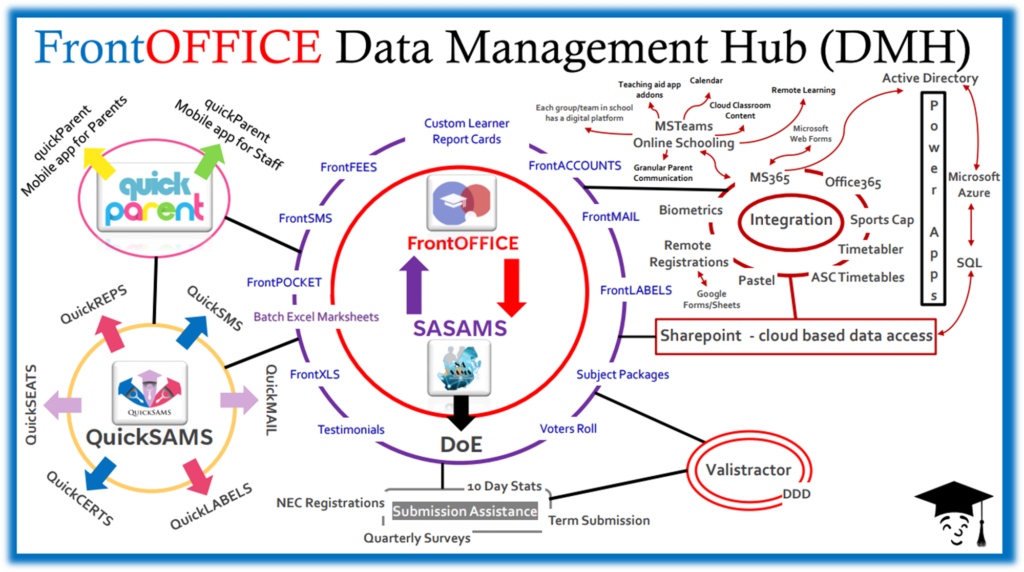
It’s busy I know, but so are we 😊.
The whole point here is that FrontOFFICE itself and indeed even the surrounding products we provide are actually a small portion of what we do. We have, essentially through sheer necessity from the growing demands on school admin teams and their digital tools, become an entire service-orientated organisation with a large level of focus being placed on a schools’ management of their own data and putting it to good use. What we call YODA Max à Your Own Data Assimilation and Maximisation. This combines the world of integrated applications whilst also giving you full control of your own data and the ability to choose the applications that most suite the various areas of your school. There is no point in being a ‘One-stop-shop’ when you can be an entire ‘Have-it-all-mall’.
FrontOFFICE to Microsoft365 School Data Sync
Our particular area of focus with regards to this at the moment is this element of the diagram above:
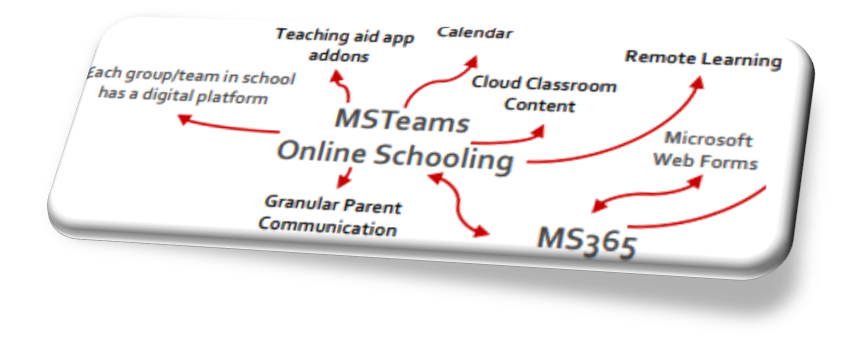
You can now synchronise the data from FrontOFFICE to MS365 which automatically populates MSTeams with all of your groups in the school, primarily of course, your academic set classes. Can our SASAMS only schools do this too? YES, of course. You can sync your data to FrontOFFICE using our SAMS2Front module even if only being used purely for this purpose. Our first school went live today and we have a few more lined up straight behind. To give you some idea of what this is here are some screenshots from our Demo Environment:

Right from the original development of FrontOFFICE, back in 1999, a fantanstic insight was made, and that was to look at a school as a collection of groups as opposed to an entity containing learners. This is something that has always distinguished us from others in the market ie. other systems are pupil-centric whereas FrontOFFICE is class-centric. In other words, it is geared, in its very ‘DNA’, to slot in to MSTeams because you can simply think of classes, groups or teams, as the same thing.
Here is an example of the global admin in one of our schools currently running FrontOFFICE Data Sync (ie. seeing all the Teams):
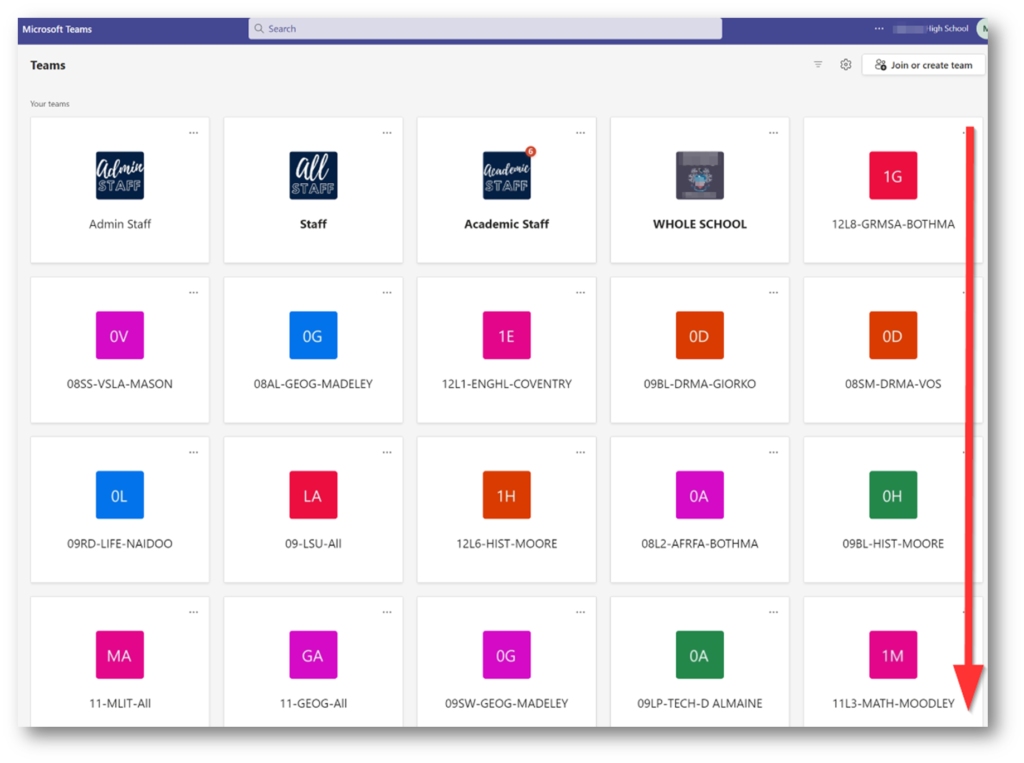
Instantly converted to a Virtual School
Once you run FrontOFFICE’s SDS, you are then, instantly a completely virtualised school and so of course, if you setup your classroom so that the class is streamed through MSTeams (just the same as say running a meeting), learners that are not able to get to school, can log in to teams (all their user accounts are setup during the SDS process) and still attend class. I mean at this point, the question becomes, are you restricted to only the learners in your class? Perhaps, at some point that is where it is all headed.
Lesson Recordings
Actual lessons can also be recorded and stored on sharepoint for access at any time, on any device, across platforms by any stakeholders. The Calendar tracks this and enables you to setup and instantly distribute news, notifications for various events and meetings within these groups/teams. You also have complete administrative control over the in app settings and addon apps and the distribution thereof to staff and learners. Parents included. (school bookings etc can be added). More on that later.
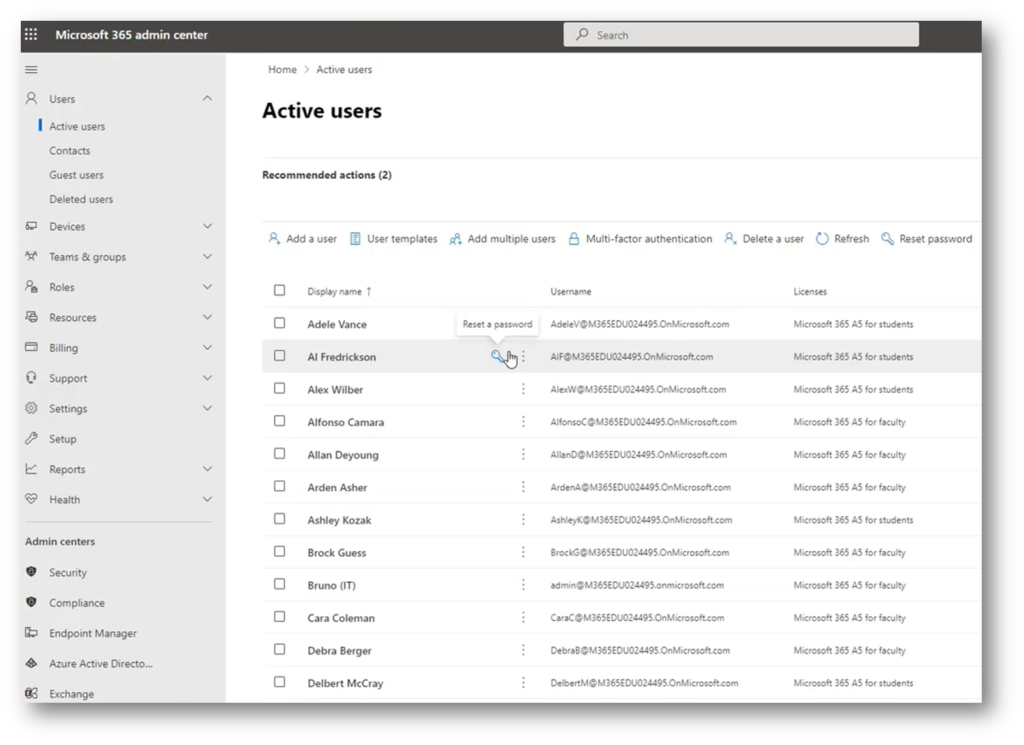
Above you can see all of your users (learners and staff) are automatically setup as users in MS365 over which your admin team (IT) have full control. We can obviously service you on this, especially if we are nominated as your partner of record.
On this note. There are particular things to make sure of, during the application process to Microsoft, that will ensure that you can distribute the Office365 apps and use the click-to-run installation and we have had reports where schools on their Education Tenant MS365 accounts are missing this attribute. I would urge you to enlist us to act on your behalf with Microsoft given our long standing dealings with them and understanding of the nuances to consider during these application processes to make sure you get the complete facilitation. The Education Tenant, which IS fully stacked, is FREE! (don’t do it through the DbE because you do NOT get the ‘fully-loaded-box-meal’).
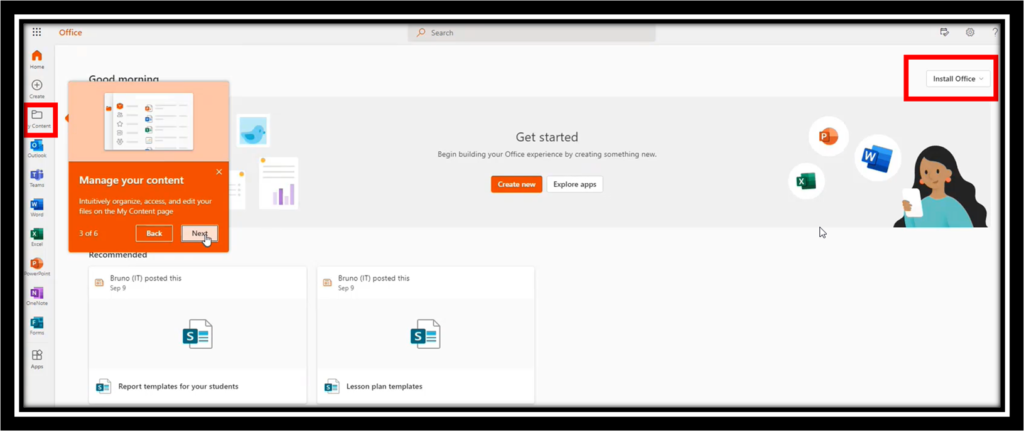
Of course, within each of the Teams on your work-MSTeams you have a digital workspace. This can be split in to channels which in the school environment can be thought of as modules or units within a subject. They are completely customisable so could be different things for different groups. For starters, one has the Class notebook (OneNote) that can be used for any manner of classroom content:

It should be noted here – that there are 100s of teaching aid addon applications that can be implemented here that teachers can use (or can be implemented at scale by your admin team). Remember what I said above about ‘Have-it-all-mall’, well you can shop around for those things that suite you. For instance, we have purchased the Minecraft Education addon and will be testing that out. You want to see children running to a class?
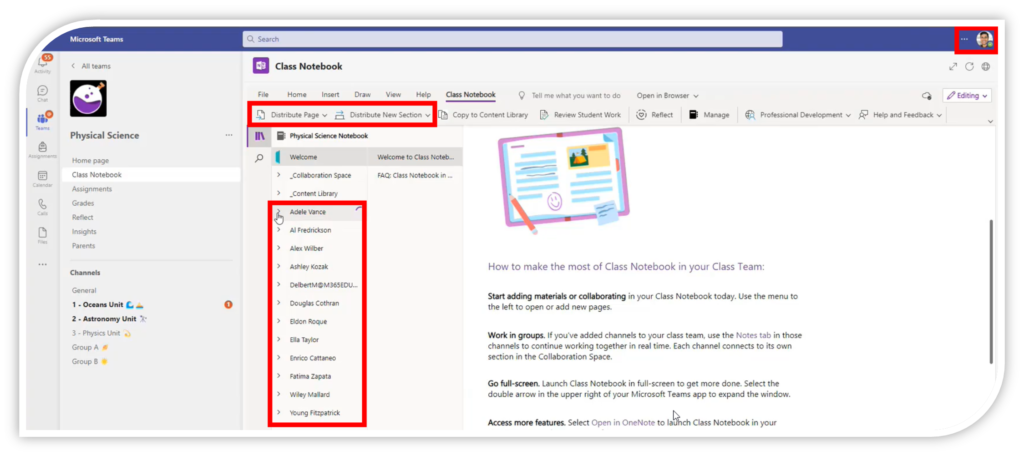
On the faculty member’s side they would see all the members of that group (in this case the learners in Physical Science). News pages and sections can be distributed to the members along with assignments and other content.
If the learner was using the digital space, on a tablet lets say (or any device for that matter), they would obviously only see that which is relevant to them:

What about the parents?
The parent communication is now extremely granular. You can communicate with all the parents or with a parent right down to the level of an individual learner.
There is no having to load parents and learners in to a separate communication application or indeed setup a million whatsapp groups and have to maintain them constantly.
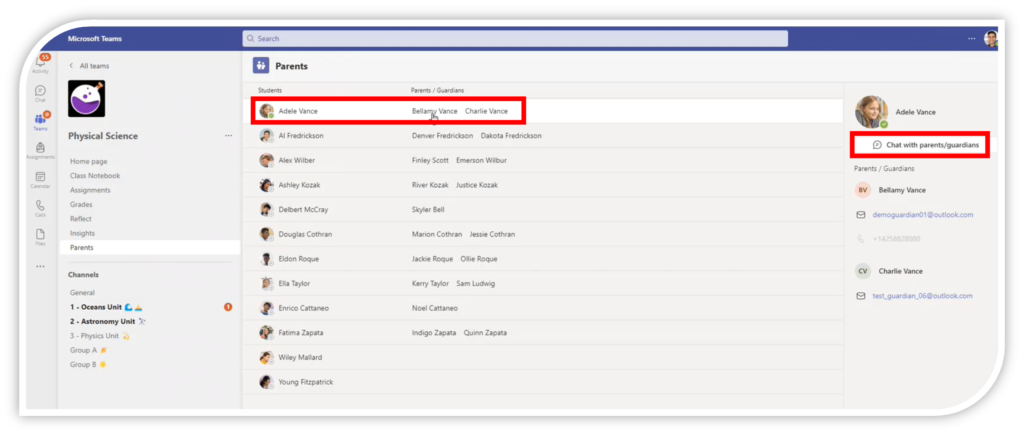
One can distribute news to a whole class too using the announcements feature whereby parents would receive that notification in their Teams.
Teams of grades and other groupings are also created during SDS so communication to parents with the above method then would also mean communication to that group, whether it be all of science grade 8, or all of grade 8, or all of the school (ie. there is a group called ‘Whole School’ created during the data sync process).
Of course the school calender will also serve this purpose depending on the chosen group recipients of a particular broadcast or which group calender that broadcast is placed into.
You can obviously control the access to communication at any level – turning the features on and off as you wish. In other words the above features depend on your school policy and settings.
Used in conjunction with our quickParent mobile app (usable for all SASAMS schools + FrontOFFICE schools), a parent also get’s all the task marks, subject marks, individual academic stats, absence instances and merit/demerit section if you use this along with all the historical data in all these categories plus siblings from different schools in one parent login.
Folks, I am scratching the surface here. The ‘Insights’ section for instance has a MASSIVE amount of potential in terms of learner performance:

Reflections on students behavour:

Team member chats within a channel/unit:

A Team for All manner of groups in a school
We have designated the data in FrontOFFICE (and by extension SASAMS if you are an SASAMS only school) in such a way that a grade head for instance would be in on all their Teams within their grade and so could monitor the collection of Teams under their purview and then also distribute content and collaborate with other faculty members in that collection of Teams.
Sharepoint Cloud Environments
When your teams (groups) are created, your sharepoint auto-populates with your teams and so you therefore have shared and collaborative cloud folders (shared workspaces) in to which you can share documents relevant to that section (and even cloud data tables to which applications – including FrontOFFICE – can be linked… watch this space). These folders can be synched locally to a team member’s PC on a permanent basis. One can create documents and folder structures that automatically populate across all machines. Plus, people can simultaneously collaborate on the same document DIRECTLY ON YOUR MACHINE.
For example:
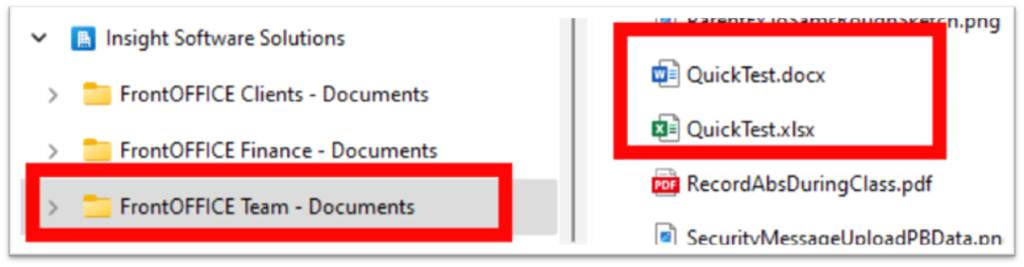
These are two files directly on my Sharepoint folders on my machine. I open the word doc on my machine and Caroline opens the word doc on her machine. We both type in to the same document at the same time (in REAL TIME ie. I can see as she is typing):

Same with Excel:

No more copy of a copy of a copy of a collaborated document floating around the school.
The marksheets can be generated and stored in these locations and therefore accessible from any location on any device AND if multiple people had to work on a marksheet, they could do so. What is more is that as marksheets are being completed, they can be imported, there is no need to complete them totally and then move them in to a completed folder because as they are being completed, they are synching to the admin machine who is importing them. Tasks can be entered in to marksheets as they are completed (as opposed to the mad rush at the end of the term), they are imported on a regular basis and what is more, is that your quickParent connector, then uploads those marks to parents’ phones and they are notified of a test… of course… you can also hold this (or any of the above) function back to release at your will.
Email Exchange
We will get to more on this later but if your email Exchange is run through this then that entire ecosystem is in total synergy with all of this.
As I say, this is scratching the surface and in the interests of not letting this email turn in to a book, I’ll move on from features.
How does this all work?
This is a basic flow chart of the data flow:
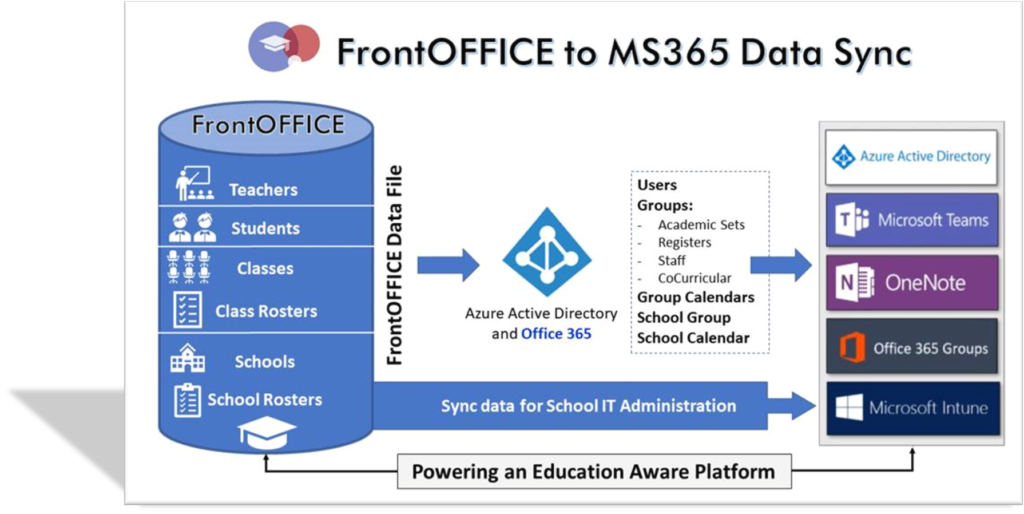
In summary: The data moves from FrontOFFICE to your MS365 (Office365) groups which in turn gives everyone an MSOffice account. This can also be done via Azure Active Directory (cloud) which then also creates all your Windows profiles for all your machines.
In the diagram below, Step3a is where we/you are at now. Step 3b and 3c are the next steps and will be readily achievable now:
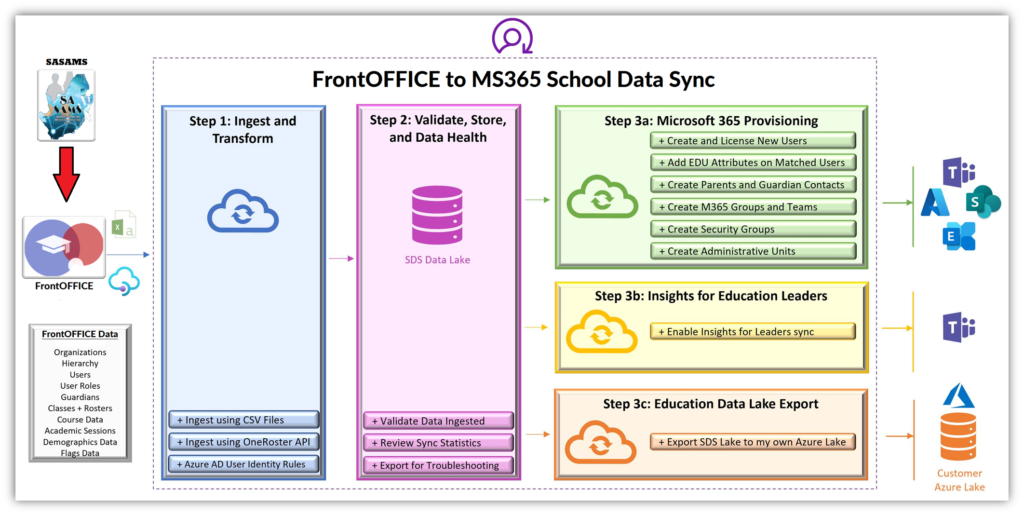
(Note: the data comes from FrontOFFICE, whether you capture in to SASAMS and export that data to FrontOFFICE or whether you capture directly in to FrontOFFICE and sync to SASAMS, the data comes from FrontOFFICE. The reason for this is very simple and that is because when the data is in FrontOFFICE, you can alter it to a much more realistic representation of what your actual Teams/Groups/Classes are in your school. This is on MANY levels but a simple example is for combined subjects in SASAMS like Social Science. These can be split in to separate History and Geography classes in FrontOFFICE, which is, in physical reality, what is happening in your school. Custom Teams/Groups can also be added to the mix in FrontOFFICE)
I’m sure it is now becoming obvious as to what the benefits here are. The rest of the world is also starting to. For instance, across the states of Canada, Western Europe, China, India and Africa, this is being implemented broadly.
Now of course, you might worry about access to internet and other general infrastructure access concerns in South Africa. Remember, that this is to supplement your existing infrastructure, not to replace it (well… not in foreseeable future anyway… who knows in the long run) hence the term “Hybrid Learning Environment”. Every school will have differing needs and challenges and this is where we can assist you in terms of understanding what these are for you (for many of you we have been servicing you for over 20 years now) and, together with your staff, we can configure the systems from basic level features to extremely advanced and complex setups depending on your needs and at what pace you want to introduce this at. The point is to add value through efficiency and productivity to your school which gives the learner an enhanced learning environment.
What does it cost the school?
Well as we have said before, the MS365 Education tenant is free which comes with all of this. So there is nothing from the Microsoft side. There are a gazillion addon applications, for instance in the classroom eg. Minecraft education, which you can shop around for. Invoking the curiosity of learners in school has long been the holy grail of learning institutions and many of the teaching aids have this quality like with gameification for instance.
From our side we have already updated FrontOFFICE with the functionality, user interface and settings to create the data and upload to MS365 via the FrontOFFICE Data Sync. The annual license fee on this is R2450 (R204.16/month charged annually). If we are nominated as your partner of record there will be a discount on this of 50%. It should be noted that this maybe subject to change depending on market conditions and or any Microsoft adjustments or enhancements but as always, we have kept our costs down by harnessing powerful applications and platforms within our ecosystem and passed those savings on to our clients and to that end are therefore super affordable. We would also do our best to notify you as far in advance as possible if this is the case.
Other costs will come into play in terms of our Service Level Framework (can be viewed in the FrontOFFICE cloud folder) and will revolve around hours spent in any or all of the following so again will depend largely to what level (eg: if we have to initiate from scratch orthat would be more hours spent vs simply traintraining your IT who then manage/implement things from that point onwards): Application (a number of you already have MS365 education accounts), Setup assistance, Training, potential on-site visits, maintenance etc. These are likely once-off/ad-hoc scenarios and follow our standard hourly rate.
The actual running of the sync is a click of a few buttons and simply done by your operator intermittently, similar to how you sync to SASAMS on a daily or weekly basis. It is essentially when there are learner or faculty member movements/changes. We do not need to be involved in that but of course would assist where required.
We currently have a number of schools that are already in line and or working live already as we speak. Due to the vastness of all that is possible once in the MS365 environment, there may be an area or many areas of all of this that your particular school spearheads/flag ships ie. we are learning with you for the better of the community down the road, and in this case, a modified annual license fee will be negotiated with that school.
Demo Bookings
We have a fantastic Demo Environment for all of the above setup for anyone that would like to book a demo (click that link) with us (notice, this link is using a Microsoft Bookings, which would be available to you too for things like parents meetings etc.).
Note: When creating a booking, in the ‘Select Staff’ please choose ‘4 Support’ from the dropdown (this notifies all of us). Under ‘Add your Details’ please enter your school name and school email (and any notes if you want) ensuring that you have access to that email on the machine you wish to have the demo on because the link will be sent to that email. Select a date and an available time slot.
As per the last email, there will be more to come on New Applications web forms and Cloud hosted data for FrontOFFICE. These will require you to have MS365 Education accounts as previously discussed.
That’s all for now 😊.
Thank you all kindly.
Best Regards

Recent Comments